

Become a Provider
If you want to offer your imagery or services through LandEye, you first need to request Provider access.
Becoming a Provider is a simple process. Once your request is approved, Provider features will be enabled for your account.
How to Request Provider Access
- Open your Profile menu.
- Go to Support & Help.
- Select Want to Become a Provider.
- Review the confirmation message and submit your request.
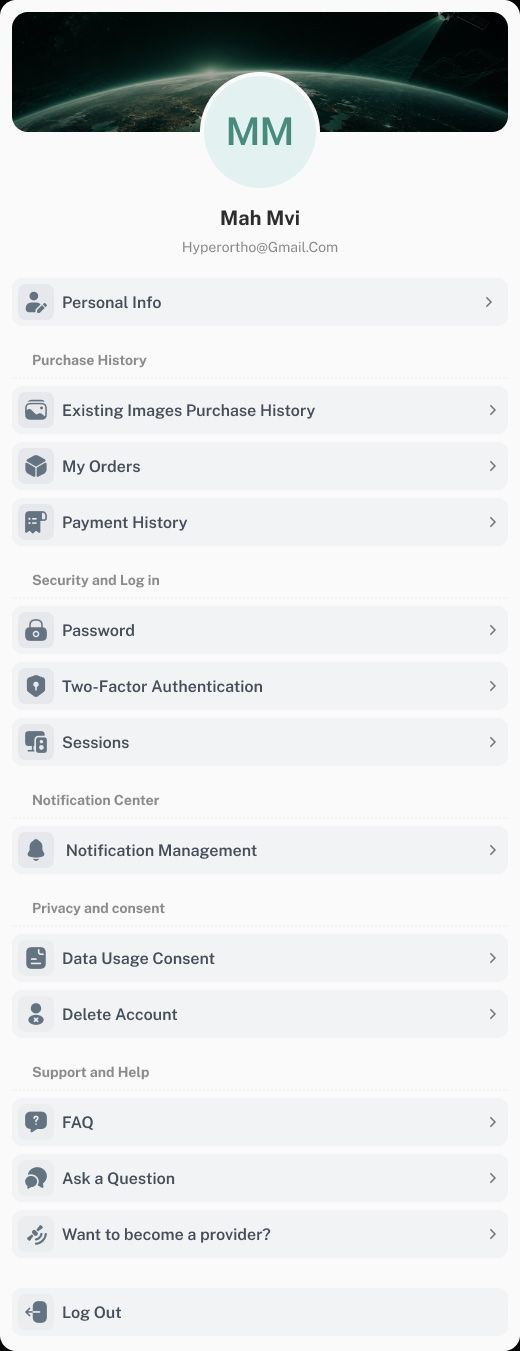
Once submitted, your request will be sent to the LandEye Admin Team for review.
What Happens After You Submit Your Request?
The LandEye team will review your request and either approve or reject it.
If your request is approved, Provider access will be activated for your account, and you can start using the Provider features available on LandEye. Also, you can switch between buyer and provider accounts using the button that appears at the top right of the sidebar menu in your profile.
If your request is rejected, you will be informed of the reason. You can then use the chat with Admin to get more information, resolve the issue where possible, and follow up on your request.
What’s Next?
Once you become a Provider, you’ll have access to additional tools and features designed for managing your activities on LandEye.
In the next tutorials, we’ll walk you through these Provider features step by step, from setting up your Provider profile to using the tools available to you.