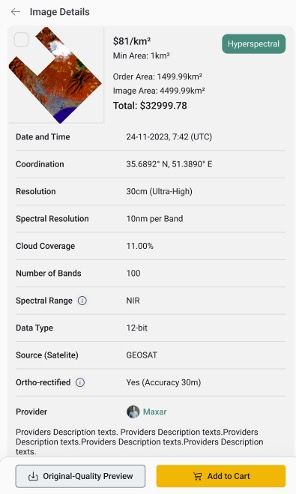

Image Previews and Metadata
This tutorial explains how to view image previews and metadata for each acquisition. After selecting an area on the map or entering the location’s coordinates in the coordinates field, a window appears showing all available imagery for that area.
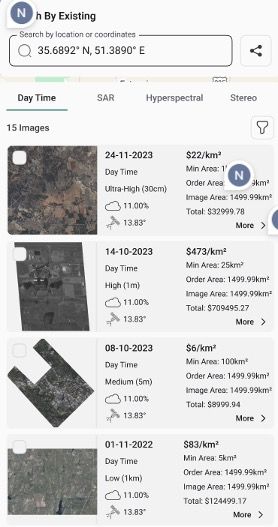
At the top of the list, four tabs let you filter results by imagery type: Day Time, SAR, Hyperspectral, and Stereo.

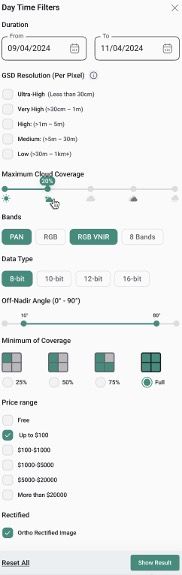
At the top right of the image list, there is a filter icon. Click that icon to apply filters and narrow your results. This window includes the following options: ● Date range ● GSD resolution ● Maximum cloud coverage ● Bands ● Data type ● Off-nadir angle ● Minimum coverage ● Price range After setting your filters, click on the “Show Results” button to see a more concise list.
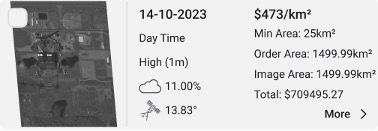
Each imagery preview shows key metadata such as date, acquisition type, angle, coverage, total price, and more. Click “More” below each image to access further information.
The platform displays a window with detailed metadata for the selected image, such as: ● Date and time ● Coordinates ● Resolution ● Spectral resolution ● Cloud coverage ● Number of bands ● Spectral range ● Data type ● Source (satellite) ● Orthorectified ● Provider details You can see two buttons beneath this metadata list. The “Original-Quality Preview” on the right lets you inspect the imagery at original quality. “Add to Cart” on the left initiates the purchasing process.