
Provider Dashboard Overview
This tutorial helps you understand the provider dashboard and its features. Once our team approves your request to become a provider, you can access your dashboard from the sidebar by clicking the human icon.
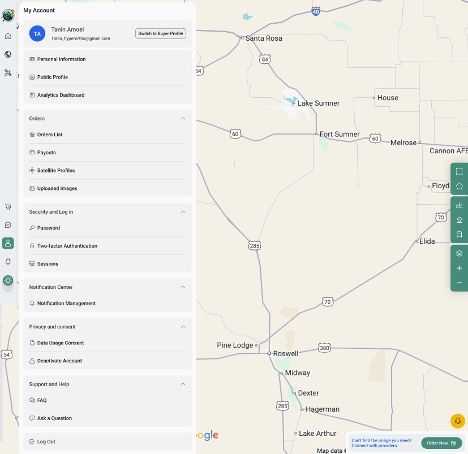
- Personal Information: View your personal information in this section.
- Public Profile: Enter and edit information visible to users, such as your biography and social media handles.
- Analytics Dashboard: This section shows data such as your total orders and satellite profiles.
- Orders List: Review all users’ orders in this section.
- Payouts: Add and edit your preferred payment methods and view your payout history in this section.
- Satellite Profiles: Click this section to create new satellite profiles or review all previously submitted profiles and their current status.
- Upload Images: You can upload existing imagery through this section and add it to your profile’s archive.
- Password: Change your provider account password in this section.
- Two-Factor Authentication: Enable or disable 2FA for your account.
- Sessions: View your active and previous sessions in this section.
- Notification Management: Enable or disable notifications from LandEye, or customize them here.
- Data Usage Consent: In this section, you can define rules and set limitations for data usage on LandEye.
- Deactivate Account: Permanently deactivate your account in this section. This action cannot be undone.
- FAQ: Check this section to see if your question has already been answered.
- Ask a Question: If you don't find what you need in the FAQ section, you can ask your question here. Our team will respond shortly after.
- Log Out: Click this button to log out of your provider account. You can log in again at any time.