

Tracking Order Status
After Placing a Tasking Order, follow these steps to track its status: First, go to your profile. On the dashboard, you can view complete details about the tasking order, including the AOI (Area of Interest), provider details, and the task configuration. The order status appears at the top of the page. The first stage is Task Submission. The provider reviews your request during this stage.
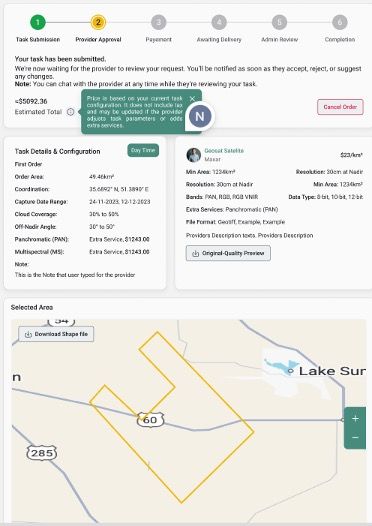
Whether the provider accepts the tasking request with the exact configuration or modifies the configuration, you’ll be prompted to proceed with payment, request changes to the configuration, or cancel the tasking order.
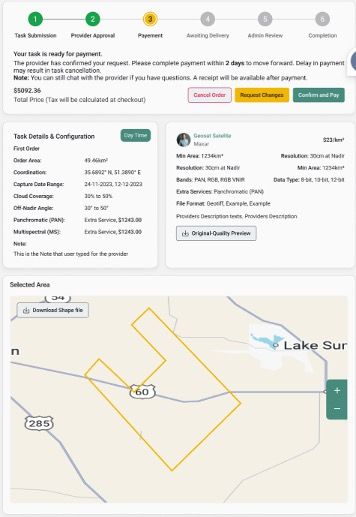
Once payment is completed, the order moves to the Awaiting Delivery phase. In this stage, the provider captures the requested imagery.
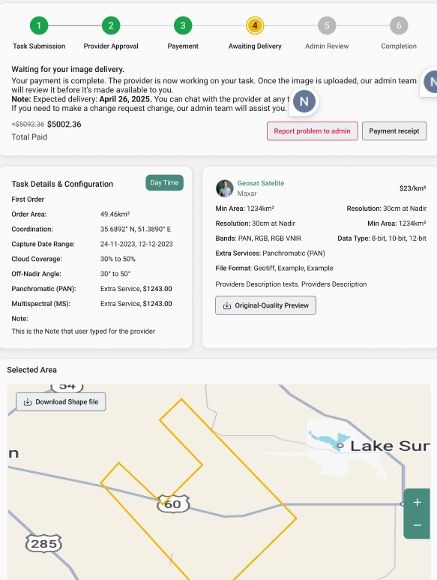
When the provider uploads the captured imagery, the LandEye team reviews it to ensure it matches the approved task configuration and complies with platform standards.
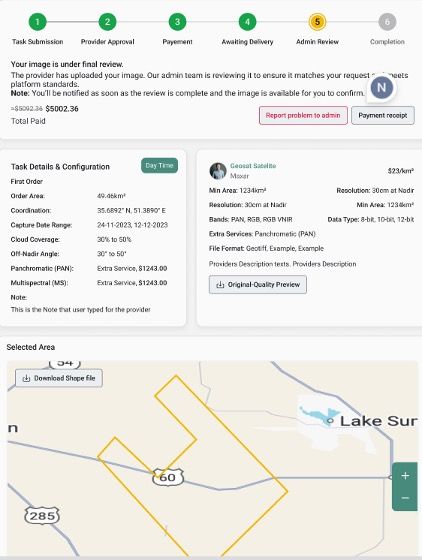
After approval, you can review the delivered imagery and confirm it matches your tasking parameters. If you identify an issue, click “Report Problem to Admin.” If the imagery meets the approved parameters, click “Approve.”
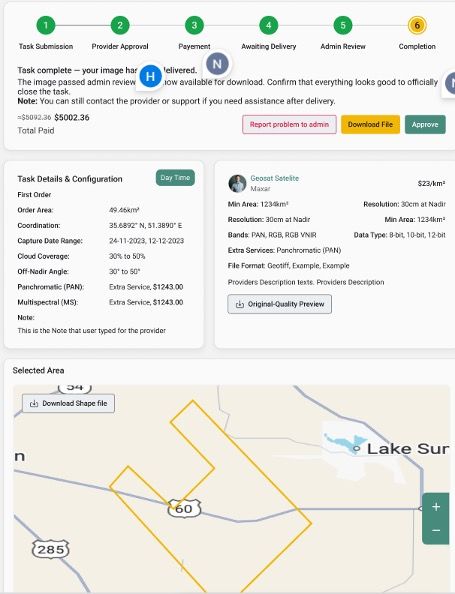
In the final stage, click the “Download File” button to access the delivered imagery. You can still report issues to the support team.